

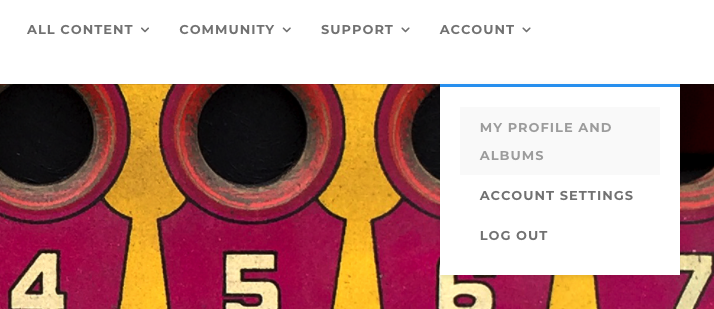
To upload a profile photo to your Membership Profile, log in to the Academy, and click on ACCOUNT choosing MY PROFILE AND ALBUMS from the drop-down menu. You will see your current Membership Profile.
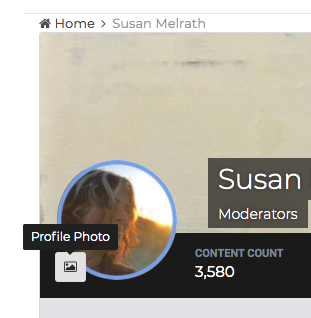
On the top left side of your Membership Profile, you will see the image of yourself that you have previously uploaded, or a blank circle image. Beside this circle image there is a small box icon. When you hover your cursor over this icon you’ll see “Profile Photo.”
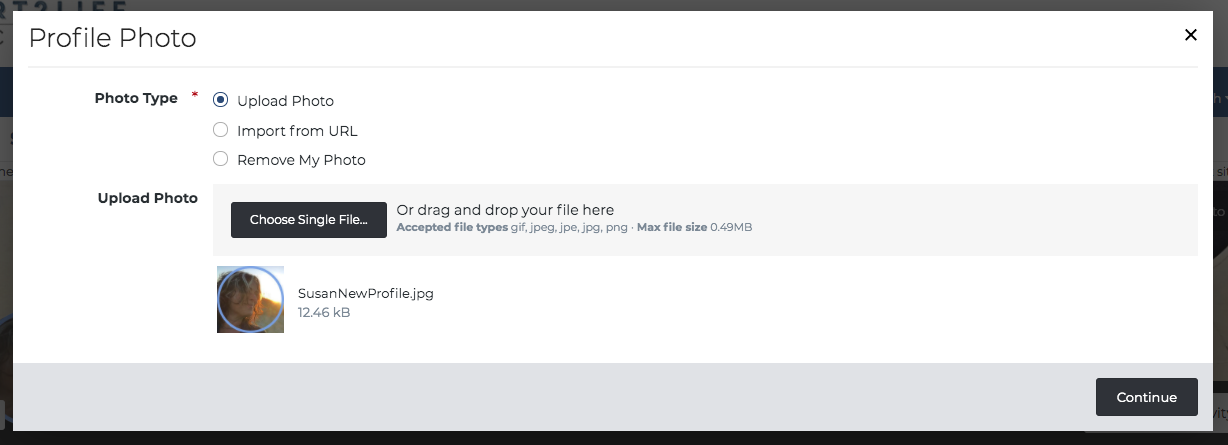
Click on this icon and a box will pop up on your screen where you can follow the steps to upload your Membership Profile photo. When finished, select SAVE at the bottom right of the screen.