

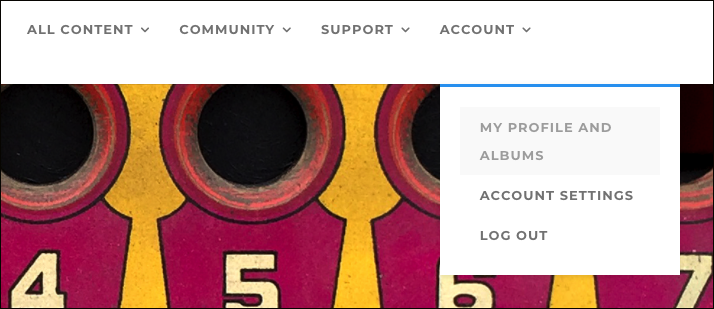
To create an album, log in to the Academy and click on ACCOUNT, choosing MY PROFILE AND ALBUMS from the drop-down menu.
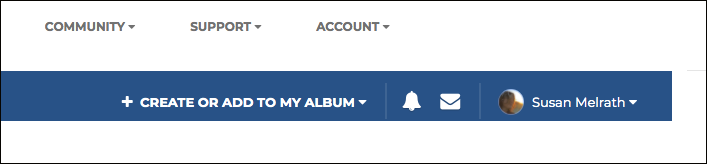
In the dark blue bar at the top right, click on CREATE OR ADD TO MY ALBUM.
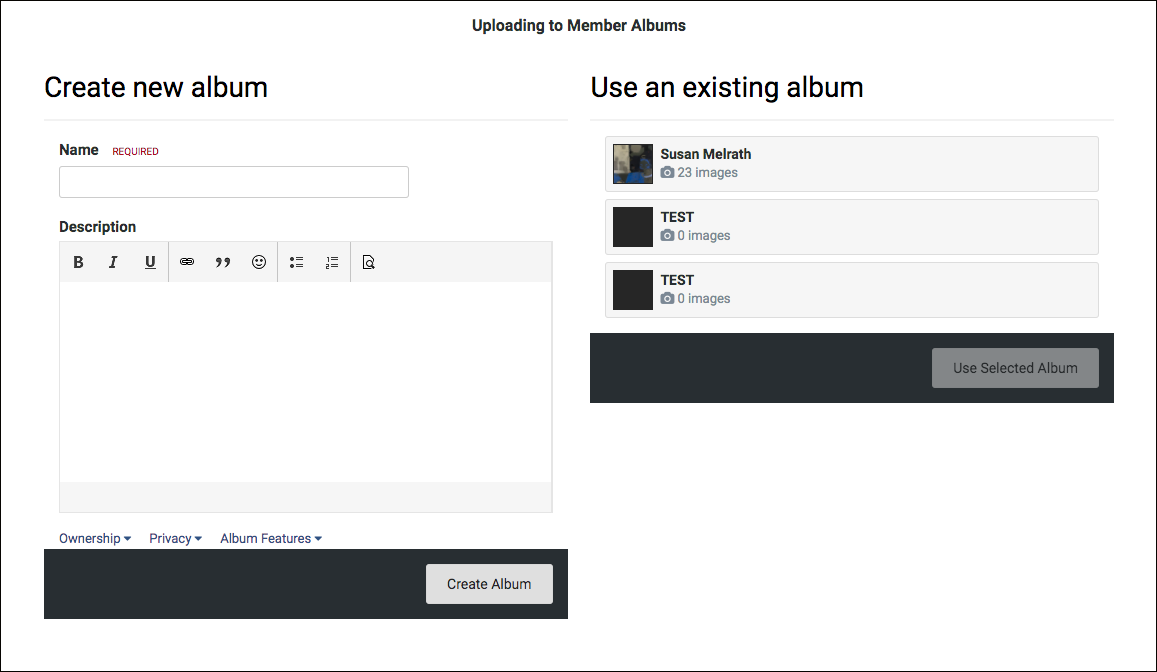
A new window will appear on your screen that will allow you to title the album you are creating, and write a brief description if you would like (description is optional, title is required). Here, you may also add images to an existing album. When you have titled your album, click CREATE ALBUM to move to the next window.
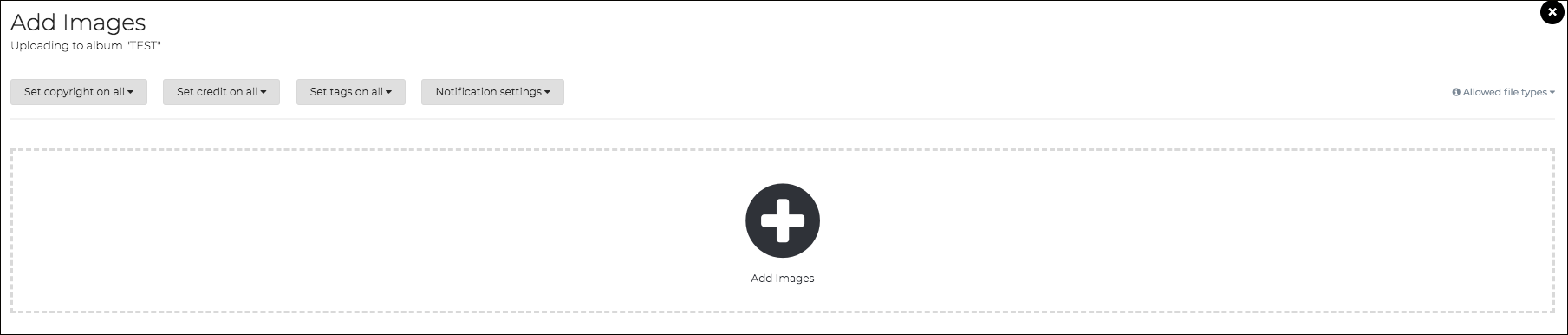
In the new window, select ADD IMAGES to add the images you would like in this album. Select each image you would like to upload to this album. Once uploaded, you may select each image in this window to write an individual description and title. When finished, click on SUBMIT ALL IMAGES at the bottom right of your window.
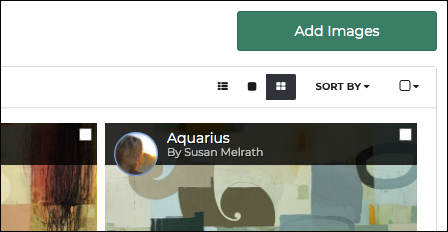
Once in your album, you can easily use the ADD IMAGES button in the upper right corner to add additional images.